Second Edition · Revision 2
The Book of GetSkipa Timekeeper
The long-form operating and product guide for GetSkipa Timekeeper.
Chapter
Welcome
Timekeeper was created to solve a plain business problem. People begin work, stop work, move through a day, and eventually someone has to decide whether the recorded time is complete enough to review and export.
That work sounds simple until the record is spread across paper sheets, text messages, spreadsheets, memory, and software that tries to solve more problems than the business asked it to solve. Timekeeper stays close to the original problem. It records work time, preserves the history, helps workers and managers review it, and gives the business reports that support payroll review.
This book explains how the application works and why it was built this way. It is not a sales document. It is not a legal opinion. It is the operating reference for GetSkipa Timekeeper.
For supplemental reading on the product philosophy behind that focus, see Why GetSkipa Timekeeper?.
Timekeeper is not payroll software. It does not calculate taxes, deductions, benefits, insurance, wages, or direct deposits. It does not replace a payroll provider, accountant, bookkeeper, or labor law responsibility. Timekeeper is a timekeeping system that produces organized, payroll-ready time records.
Every chapter is written for the same purpose. The reader should understand what Timekeeper does, why it behaves that way, and what the business remains responsible for deciding.
Chapter
Our Commitment
GetSkipa built Timekeeper around a simple promise. Time records should be accurate, understandable, and consistent.
A worker should be able to see the time that belongs to them. A manager should be able to review that time without guessing where the numbers came from. An owner should be able to export a report and see the same story that appeared in the application. When something changes, the change should be visible in the audit history.
This commitment shaped the application. Clock events are preserved. Manager edits are recorded. Worker approvals and manager approvals are stored as workflow events. Reports are generated from the same accounting engine that supports the dashboards. Timekeeper does not maintain one set of numbers for the screen and another set for exports.
There is also a shared responsibility. GetSkipa provides the system used to capture, store, calculate, review, and export work time. Each business controls how workers use PINs, who is allowed to manage the business, how exported records are retained, and whether the exported data satisfies the requirements that apply to the business in its jurisdiction.
This book is part of that commitment. It explains the product in plain language so businesses can make informed decisions about how they use it.
Chapter
Why Timekeeper Exists
Small businesses rarely begin by looking for employee time tracking software. They begin with a simpler need. They want to know who worked, when they worked, and what hours should be reviewed before payroll.
The difficulty usually begins long before a business starts looking for timekeeping software. Hours are written on paper, exchanged through text messages, entered into spreadsheets, or simply remembered until the end of the week. Those methods often work when there are only a few people, but they become harder to manage as the business grows. Records get lost. Details are forgotten. Managers spend valuable time trying to reconstruct what actually happened instead of reviewing accurate records.
Even businesses that already use a time tracking system eventually encounter situations that test its reliability. A worker forgets to clock out. A manager corrects a missed punch. Someone works past midnight. A pay period ends during an overnight shift. A worker approves a timecard, then later clocks in again. A business changes a job assignment or moves a team between locations. Each of those events creates a record that should remain understandable weeks, months, or even years later.
Timekeeper exists to handle those situations without becoming payroll software, a human resources system, or a scheduling platform. It records time, applies the business rules configured by the business, and presents the result consistently through dashboards, reports, approval workflows, and exports.
Timekeeper was developed for small and medium-sized businesses such as contractors, cleaning companies, landscaping crews, volunteer organizations, and other teams that need dependable employee time tracking without adopting a large administrative suite. It runs in a web browser on devices the business already owns. Workers can record or enter time, review their own hours, and download personal records. Managers and Owners review business activity from the management workspace, while crews can use a Shared Kiosk. Regardless of how time is collected, the records remain connected and understandable.
The design is narrow on purpose. Timekeeper should be easy to understand on the first day and still trustworthy after months of use. Features that support accurate timekeeping belong in the product. Features that move the product into payroll processing, benefits, taxes, or broad human resources management do not.
Chapter
Getting Started
New businesses begin with Guided Setup. It helps the Owner describe the intended use, choose Clock, Manual, or both, set Business Hours, establish payroll periods, and review recommendations for Projects and Shared Kiosks. Those choices remain a draft until the Owner finishes setup. Project and kiosk answers are recommendations, not switches that restrict future use.
This Book explains what those choices mean. For the shorter procedure that shows where to click and what to create first, use the Timekeeper Quick Setup Guide.
If your business is planning its process, testing, training, and launch, use the Timekeeper Implementation Guide as the companion to this product reference.
A business should begin setup in the same order it intends to operate. Timekeeper allows flexibility, but the cleanest workflow is to create the business, define the worker jobs or work types, define the locations, then add workers and assign them to the correct job and place in the business.
The business record establishes the name of the business, the reporting timezone, the pay cycle used for time review, the cycle start when required, and the weekly overtime threshold configured by the business. These settings influence how time is displayed, how reporting periods are grouped, and how overtime is identified.
Jobs and Work Types should be created before workers when possible. A Job / Work Type identifies the worker's role or usual kind of work. A Project answers a different question: which customer, contract, or piece of work received the time. Keeping those ideas separate makes later reports easier to understand.
Locations and Sites should also be created before workers. Locations identify where work happens. A business may use customer locations, job sites, buildings, departments, offices, or mobile work areas. Location names appear in worker assignments, time logs, reports, and schedule adherence review.
Workers are added after the work structure is in place. The display name is required because it is the name shown throughout the operational experience. First name, last name, and Payroll ID / Unique ID support exports and record keeping. A business can also assign a Manager, Job, Location, and Projects; choose Clock or Manual; set a schedule; apply OT Eligible or PT; grant Manager Access; enable Kiosk Only; and assign a PIN.
GetSkipa recommends that every worker have a PIN. The business controls its own PIN policy, but assigning PINs during setup creates a clearer operating model and helps prevent accidental use of the wrong worker record. The Owner Dashboard always requires PIN protection because it controls the business.
If the business uses kiosks, kiosk records can be created after jobs and locations exist. Each kiosk has its own URL. That URL can be opened on a laptop, tablet, phone, or another device with a supported browser and camera. Workers authenticate at the kiosk by scanning their worker QR code.
Chapter
Roles and Access
Timekeeper uses a small set of roles so the business can understand who is allowed to do what. The main roles are owner, manager access worker, standard worker, and kiosk only worker.
The owner controls the business. The Owner Dashboard provides access to business settings, workers, time logs, reports, jobs, locations, kiosks, approvals, and account-level information. The owner link must be protected because it is the administrative entry point for the business. Timekeeper requires PIN protection for the Owner Dashboard as a built-in protection for the customer.
A Manager Access worker has management authority inside the business. Managers normally begin with My Assigned so daily work stays focused. Worker maintenance, historical corrections, and Manual time changes remain limited by Assigned Manager. Timecard approval is different: a valid Manager may approve any worker timecard in the same business because approval is a business review responsibility. The person who actually approves is recorded.
The Owner controls business-wide settings, work structure, and account-level decisions. A Manager does not become the Owner merely because the All presentation option is available. Filters change what is convenient to review; they do not create new authority.
A standard worker can clock in, clock out, review personal time, approve personal timecards, view the worker profile, change the worker PIN when available, download personal hours, and download the worker edit log. Workers cannot see other workers, change business settings, manage business reports, or edit their own historical time.
A Kiosk Only worker must begin a Clock or Manual Presence session at a business kiosk. Kiosk Only restricts initial entry, not the management of a session that already exists. A Clock worker who is already working can still use the Work Link for Clock Out, Lunch, Break, or Return as appropriate. A Manual Timesheet worker with an active presence session can use the supported presence actions. This prevents a worker from being trapped in an open session.
The business controls how PINs are assigned and used for workers and managers. Managers may reset PINs for workers inside the business. Keep the Owner PIN secure. If Owner access is lost, contact GetSkipa support to ask what verified assistance is available.
Chapter
Business Configuration
The business configuration determines how Timekeeper interprets time. The most important settings are business name, reporting timezone, pay cycle, cycle start, and weekly overtime threshold.
Business Hours describe the normal operating week. During initial setup, Standard Hours can also supply a useful schedule for new workers. Open 24/7 and Hours vary describe businesses that do not fit one repeating daily window. Changing Business Hours does not silently replace the schedules already saved for existing workers.
The reporting timezone is the timezone used for business reporting. Timekeeper uses IANA timezone identifiers such as America Chicago, America New York, America Phoenix, Pacific Honolulu, and other supported zones. The label shown to the user may include helpful offset text, but the value stored and used by the application is the IANA timezone value. This matters because IANA timezone rules handle daylight saving behavior where applicable.
The pay cycle controls how Timekeeper groups time for review. The supported cycles are weekly, biweekly, semi-monthly, and monthly. Weekly and biweekly businesses use a configured cycle start. Semi-monthly businesses use the first through the fifteenth and the sixteenth through the end of the month. Monthly businesses use calendar month boundaries. These settings help the application determine current and previous reporting periods.
The weekly overtime threshold is the number of hours after which eligible worker time should be treated as overtime. Timekeeper applies this rule to the business configuration and the worker overtime eligibility setting. IMPORTANT: The business remains responsible for ensuring that the configured threshold matches the labor rules and business practices that apply to it.
The part-time threshold supports weekly PT review. Break Settings determine whether recorded Lunch and Break interruptions count toward worked and payroll time. The business is responsible for choosing overtime, part-time, and break treatment that matches its own practices and applicable requirements.
Default Entry Method is used when new workers are added. Manual Time unchecked means Clock; checked means Manual. It is a default, not a bulk conversion. Existing workers keep their current Entry Method until the business intentionally changes them.
Changing business settings can affect current and future displays and reporting periods. Timekeeper does not rewrite existing time records. Where historical settings and entry details were captured with the record or approval, Timekeeper continues to use that saved historical information.
Chapter
The Time Accounting Engine
The Time Accounting Engine turns recorded work into timecards and reports. It is the reason the Operations Dashboard, My Timekeeper, Timecard Review, Payroll reports, and Time Log Review can tell the same story.
The design is simple. Preserve what happened. Apply the business settings. Produce consistent results.
When a worker Clocks In or Out, Timekeeper records the moment the event occurred. That original moment does not change because of daylight saving time, travel, browser timezone, or a later change to the business reporting timezone.
Timekeeper preserves the original moment a Clock event occurred. The business reporting timezone determines the local date and time shown in Timekeeper, including daylight-saving adjustments where applicable.
Dashboards, timecards, and reports do not keep unrelated versions of the same total. They use the same time records and business rules. Manual payable hours join Clock hours in the period totals without turning one kind of record into the other.
The engine handles ordinary shifts, overnight shifts, shifts crossing midnight or a reporting-period boundary, Manual daily hours, weekly overtime allocation, worker overtime eligibility, edited records, and approval state. When a shift crosses a reporting-period boundary, the original Clock entry remains understandable while the counted hours are placed in the correct periods.
Timekeeper was tested with weekly, biweekly, semi-monthly, and monthly reporting logic, timezone changes, Arizona reporting where daylight saving time is not observed, overtime scenarios, cross midnight work, and cross period work. The goal was not simply to see whether a number appeared. The goal was to confirm that the same records produced consistent results across worker views, manager views, dashboards, reports, CSV exports, and audit logs.
Entries less than one minute
Timekeeper records every Clock In and Clock Out event, even when the elapsed time is less than one minute. These entries appear in Time Log Review and detailed reports. Nothing is hidden or discarded simply because the entry is short.
Time Log Review displays very short completed entries as < 1m. This tells the reader that the worker completed a Clock session, but the actual elapsed duration was less than one full minute.
Visible Clock In and Clock Out times may appear to span one displayed minute because timestamps are formatted at the minute level. For example, a worker may Clock In at 10:42:35 AM and Clock Out at 10:43:12 AM. The displayed times may appear as 10:42 and 10:43, but the actual elapsed time is 37 seconds.
For an actual duration of less than sixty full seconds, Timekeeper records zero total minutes for counted time. The entry remains visible but does not add counted time until a full minute has elapsed. This prevents many short entries from gradually overstating payroll time.
Chapter
Clock, Manual, and Presence
Timekeeper supports two ways to record payable time because businesses do not all work the same way. A Clock worker records the beginning and end of a working session. A Manual Timesheet worker enters the payable hours for each day on a Manual Timecard. A business can use either method throughout the workforce or use both at the same time.
Clock time
Clock In begins a Clock entry. Clock Out completes it. Lunch and Break remain part of that same session, and Break Settings determine whether each kind of interruption is paid or unpaid. If several Projects are available, the worker chooses a Project when the session begins.
One Clock entry has one Project. A worker who begins at 8:00 AM on Project A keeps Project A through Lunch, Break, and Return. To begin Project B at 1:00 PM, the worker Clocks Out of Project A and Clocks In again under Project B. This creates a clear boundary instead of changing the meaning of an entry halfway through.
Manual time
A Manual Timesheet worker enters payable hours directly on the Manual Timecard in quarter-hour increments. The worker can allocate a day's hours among eligible Projects. Those allocations must add up to the day's total before the timecard can be saved.
Manual Presence
Manual Presence answers a current operational question: is the worker Checked In or Checked Out? Lunch, Break, and Return can add useful presence detail. Presence never creates payable Manual hours. A Manual Timesheet worker can be Checked In with no payable hours yet, or Checked Out with payable hours already saved. The separation is intentional because being present and reporting payable time are not always the same business event.
Changing Entry Method
An Entry Method change controls new work. Existing Clock and Manual records remain connected to the method used when they were created. If a Clock or Manual Presence session is still active, Timekeeper waits for that session to finish before applying an incompatible change. This avoids changing the rules during an unfinished work session.
Chapter
Owner and Manager Dashboards
The Dashboard is the administrative workspace for the business.
The dashboards give the business a quick view of current operations. Worker Status uses current states such as Working, Checked In, Checked Out, Out, Expected, Missing, Excused, and Not Scheduled. These labels distinguish active Clock work, Manual Presence, completed work today, and schedule-based expectations without treating the Operations Dashboard as a payroll report.
When schedule information is available, Worker Status may show the planned start or stop beside the actual recorded clock event. This makes lateness and schedule variance easier to see without changing the recorded time. Refresh controls update live information without changing the records themselves.
The Workers area is where the business creates and manages worker records. Each worker can have a display name, first and last name, Payroll ID / Unique ID, Assigned Manager, Job / Work Type, Location / Site, Projects, Entry Method, schedule, OT Eligible and PT settings, Manager Access, Kiosk Only, PIN, Work Link, and QR.
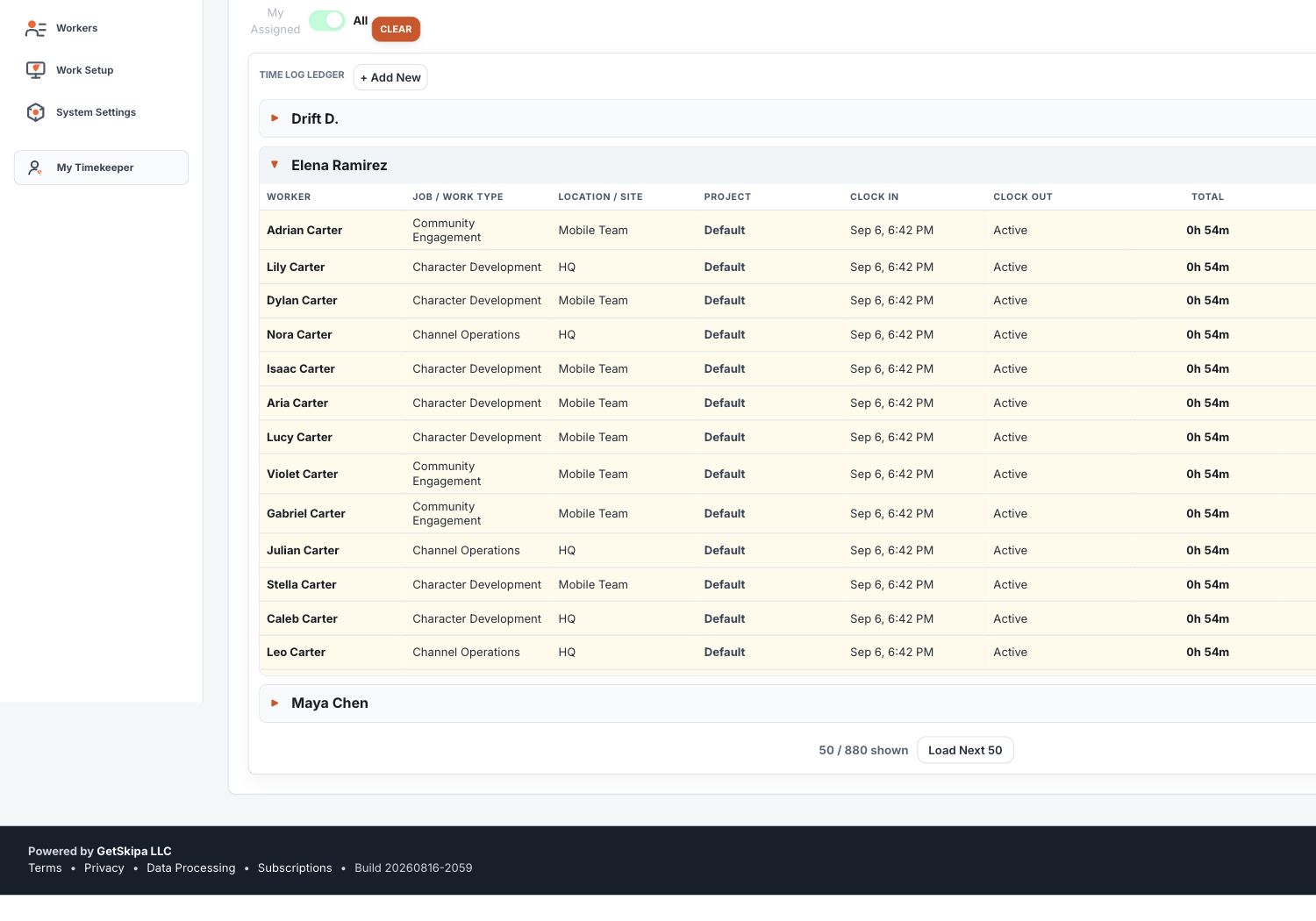
The Time Logs area is the operational ledger for reviewing and correcting recorded entries. It shows individual Clock and Manual records, source, status, edits, Job / Work Type, Location / Site, and Project context, kiosk context when applicable, and the total time for each visible record. The dedicated Reports area provides flexible analysis, Copy, and CSV export without changing the operational purpose of the ledger.
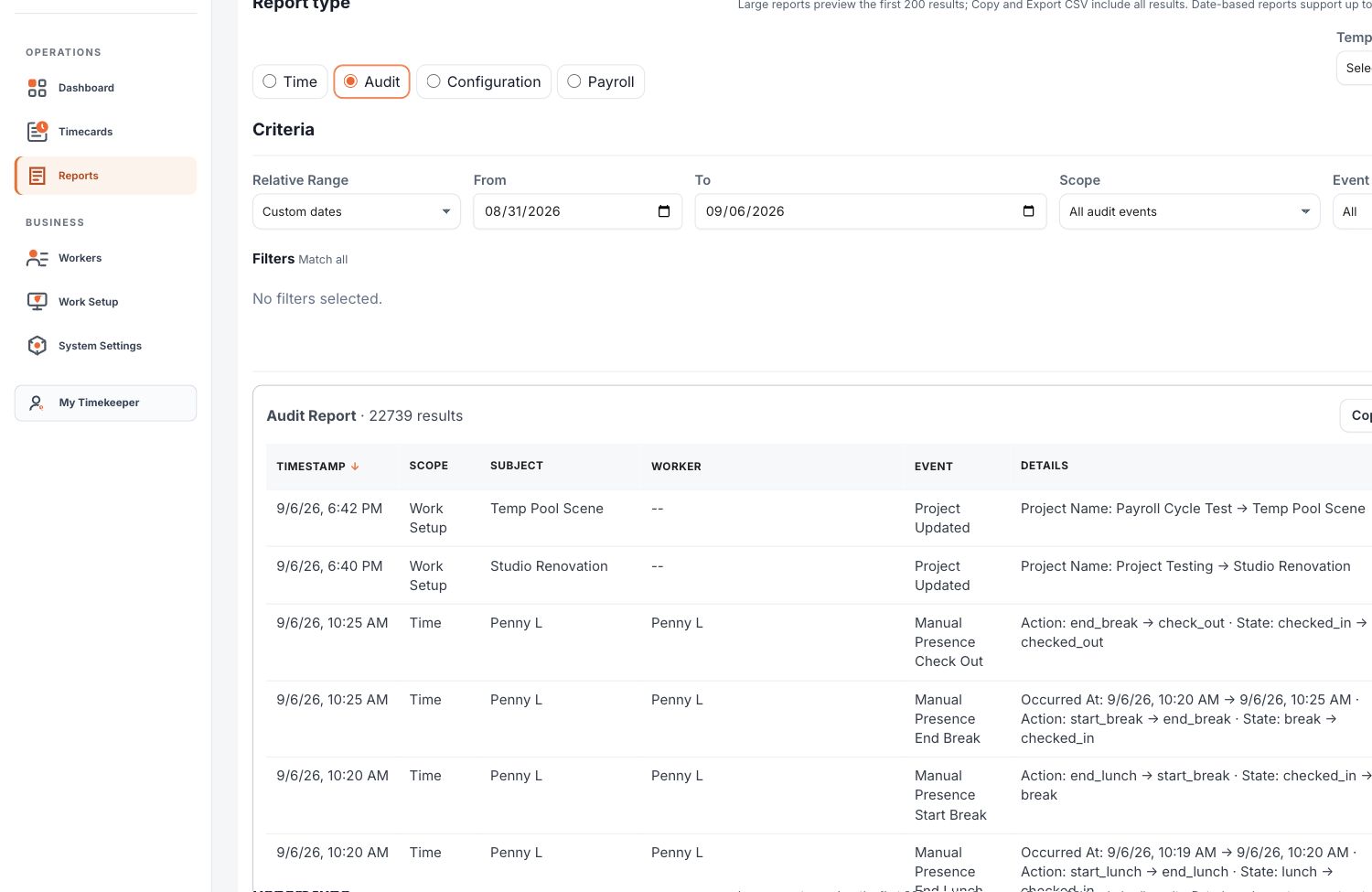
Reports has its own navigation in the owner and manager workspace. It provides Time, Audit, Configuration, and Payroll reporting while Time Logs remains the place to investigate individual records and resolve timekeeping issues.
Work Setup contains Projects, Jobs / Work Types, Locations / Sites, and Shared Kiosks. A Job describes the worker's usual kind of work. A Location describes where work is based. A Project describes the customer, contract, or piece of work receiving the hours. The system-created Default Project provides a fallback when no customer-created Project is needed.
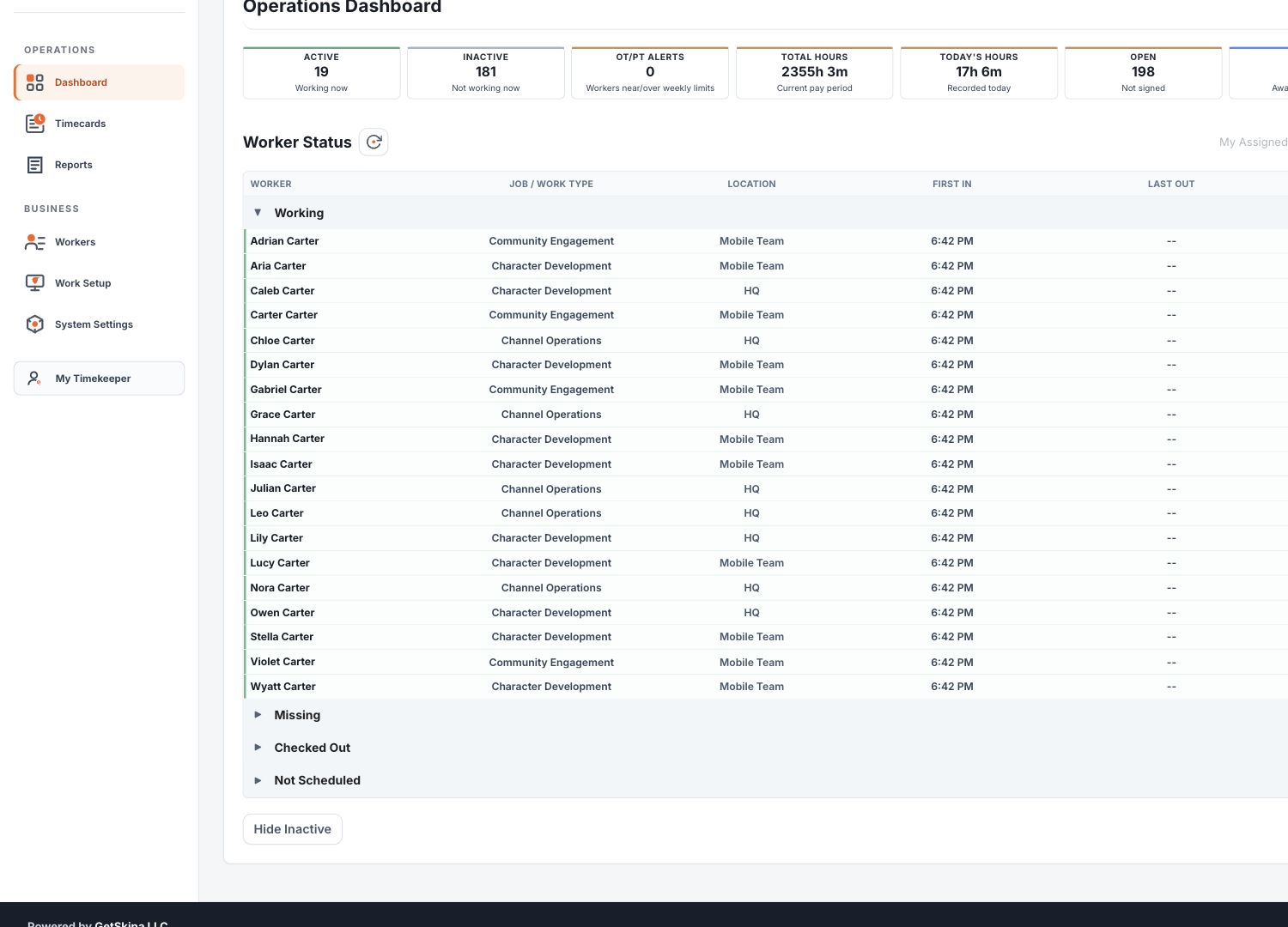
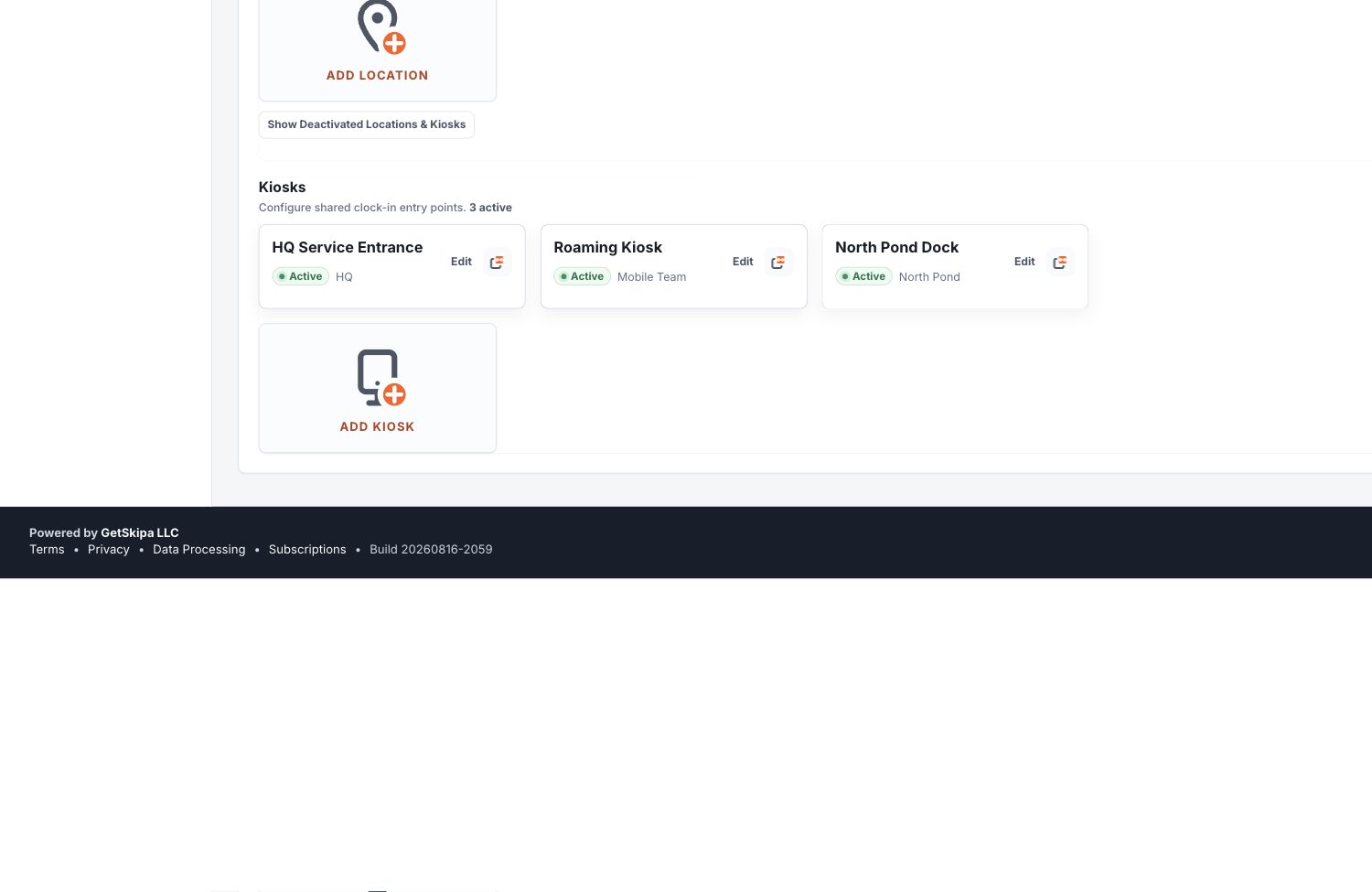
The Kiosks area is available across Timekeeper plans. A kiosk is a shared clock station opened from its own URL. A kiosk can be assigned to a Location / Site, and the business can choose a camera preference when the device supports it.
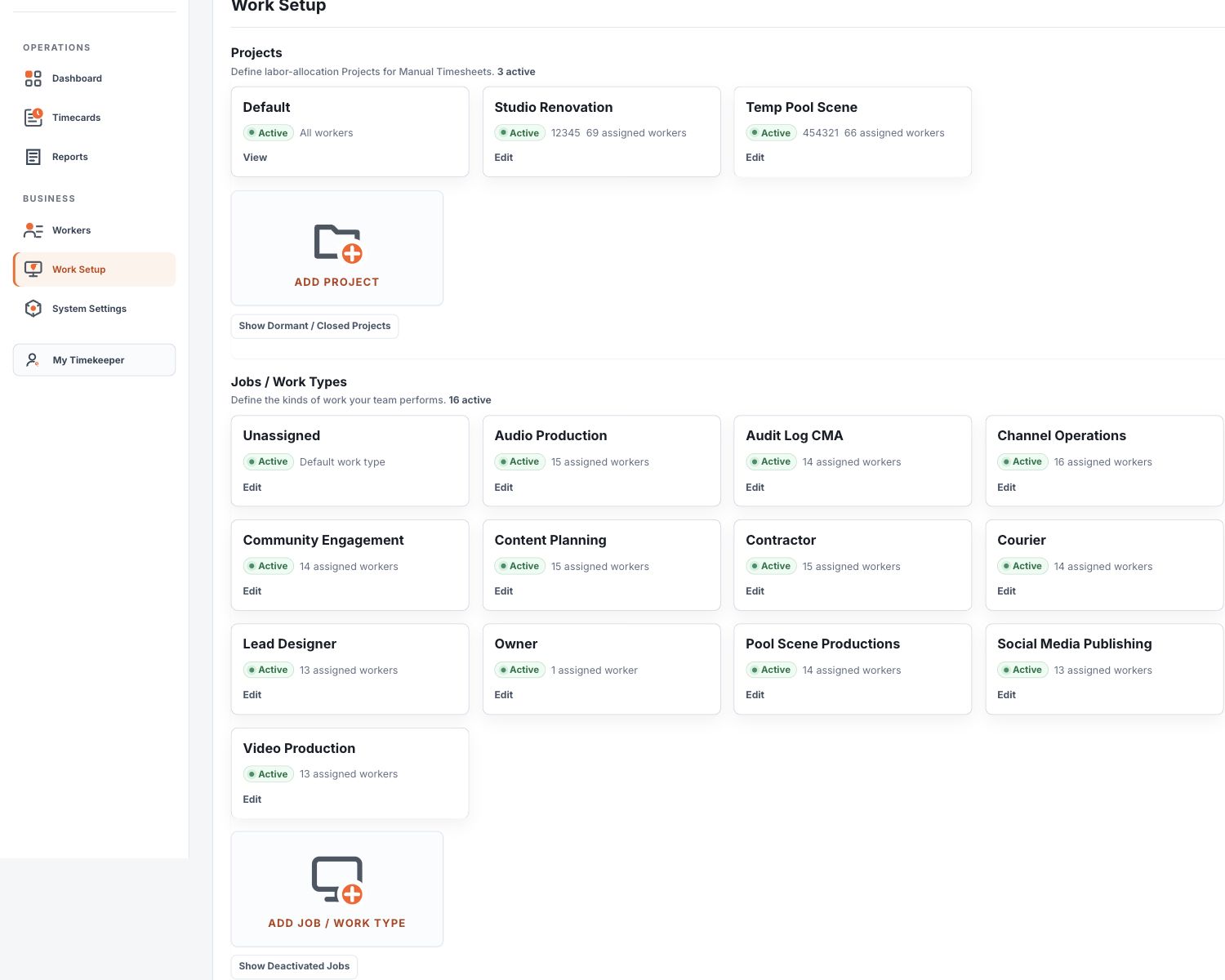
The owner workspace is protected because it controls the business. The owner link should be saved carefully. The owner PIN should be kept in a safe place. The Owner worker is a protected business account and cannot be deactivated or have Owner access removed through normal worker maintenance. If Owner identity appears unresolved, contact GetSkipa support rather than creating a replacement worker.
Chapter
Time Logs and Filtering
The Time Logs area is an operational interface for reviewing Clock and Manual records, finding edits, checking work context, correcting records, and investigating timekeeping issues. Its filters refine the ledger records being reviewed.
The date range defines the first layer of records. Worker, Job or Work Type, and Location filters then refine the records already visible inside that date range. They do not create a separate reporting period by themselves. A worker filter applied to one day means the selected worker for that day. The same worker filter applied to the complete available history means that worker across the complete available history.
Clear returns the ledger to its normal unfiltered operational view. The date shortcuts and custom range controls remain tools for locating records; they do not create a separate payroll period by themselves.
The dedicated Reports area is the current interface for flexible analysis, reporting, Copy, and CSV export. Report criteria are maintained separately from the Time Logs ledger, so changing a ledger filter does not silently run or redefine a report.
Worker personal downloads remain available from the Worker Dashboard. Those downloads are separate from the owner and manager Reports workspace.
Chapter
Workers
Before time can be recorded, a worker must exist in the business. The worker record is the identity that connects clock events, approvals, reports, exports, audit history, and profile information.
The display name is required. It is the name used in the live application. Timekeeper also supports first name, last name, and Payroll ID / Unique ID for exports, payroll review, and the business's own record keeping.
The Unique ID is customer managed. Timekeeper does not automatically generate it. Some businesses use employee numbers or payroll identifiers. Other small businesses do not use them at all. The field is optional. When used, it may contain up to 20 letters and numbers.
First name and last name are also optional, but they are useful. Some payroll systems rely on employee names when no employee ID is present. Using explicit first and last names gives the business a clean fallback for payroll review and reduces ambiguity in exported files.
Workers may be assigned to a Manager, Job / Work Type, Location / Site, and one or more Projects. Entry Method decides whether new payable work uses Clock or Manual. A weekly schedule supports Expected and Missing status. OT Eligible, PT, Manager Access, and Kiosk Only control the corresponding worker behavior.
Project assignments are choices for new work, not instructions to rewrite older work. Removing a worker from Project A stops offering A for future entries. Older entries that used A still show A. If no non-default Project remains, the system-created Default Project continues to provide a useful fallback.
Workers can be deactivated when they leave the business or should no longer appear in active views. Deactivation removes the worker from the active roster without erasing historical time records. This preserves the ability to review prior activity and export records that belong to earlier periods.
Managers and owners can reset worker PINs, refresh the shared QR and Work Link credential, and update worker information within their allowed scope. Refreshing QR also replaces the current Work Link, so Timekeeper asks for confirmation and the new link must be shared with the worker.
Chapter
Worker Experience
My Timekeeper gives a worker access to the information that belongs to that worker. Home shows the current state and available next actions. Current Session explains active work or presence. Timecards and Time Logs provide personal history. My Profile shows the worker information maintained by the business and provides worker-facing access controls.
A worker does not see other workers. The dashboard is personal to the worker record. This keeps the worker experience simple and reduces the chance of one worker viewing another worker activity or private data.
Workers use a personal Work Link and may use their QR at a Shared Kiosk. The current architecture uses one shared worker credential for both. Refresh QR therefore replaces the old QR and old Work Link together. The QR tile appears on Home when kiosk access is relevant, opens a larger view when selected, and offers Download without recording time or presence.
A Clock worker uses Clock In, Lunch, Break, Return, and Clock Out according to the current session. A Manual Timesheet worker enters payable hours on the Manual Timecard and may use Check In, Lunch, Break, Return, and Check Out for presence. Presence never becomes payable Manual time.
The worker timecard approval process gives the worker a chance to review recorded time before manager approval. If a manager edits time after approval, Timekeeper marks the timecard as needing reapproval. If new time is recorded after approval, the approval state updates so the business does not rely on an old approval for new work.
Workers can download their own hours and their own edit log regardless of whether the business is on the free plan or a subscription plan. These personal downloads provide access only to the records that belong to that worker.
My Profile displays the current worker information maintained by the business, including identity, work assignment, schedule, and applicable access settings. When kiosk QR access is available, the QR tile appears on Home. Empty information remains blank or visibly unset rather than being hidden.
Chapter
Approvals
Approvals are part of the review process. They do not change recorded time. They describe the status of review.
Worker Approval means the worker reviewed the timecard and accepted the recorded time. Manager Approval means an Owner or Manager completed management review. Timecard Review shows these as two clear concepts with Pending, Approved and the approval time, or Needs Reapproval where applicable. Bypass behavior remains part of the approval history but is not presented as a separate everyday status.
Approval applies to the timecard as it exists when reviewed. If payable time changes afterward, Timekeeper updates the approval state so the earlier approval is not treated as approval of the changed timecard.
If payable time changes after Worker Approval, the old approval no longer describes the current timecard. Timekeeper marks it Needs Reapproval so the worker can review the changed result. The same principle applies whether the change came from new work or an authorized correction. An approval should describe the time that is actually being approved.
Timecard Review combines Clock and Manual payable records for the selected payroll period. Current and Previous remain quick choices, and the historical period selector opens older periods. A Manager filter can narrow the authorized roster. No worker is selected automatically because review and approval should begin with an intentional choice.
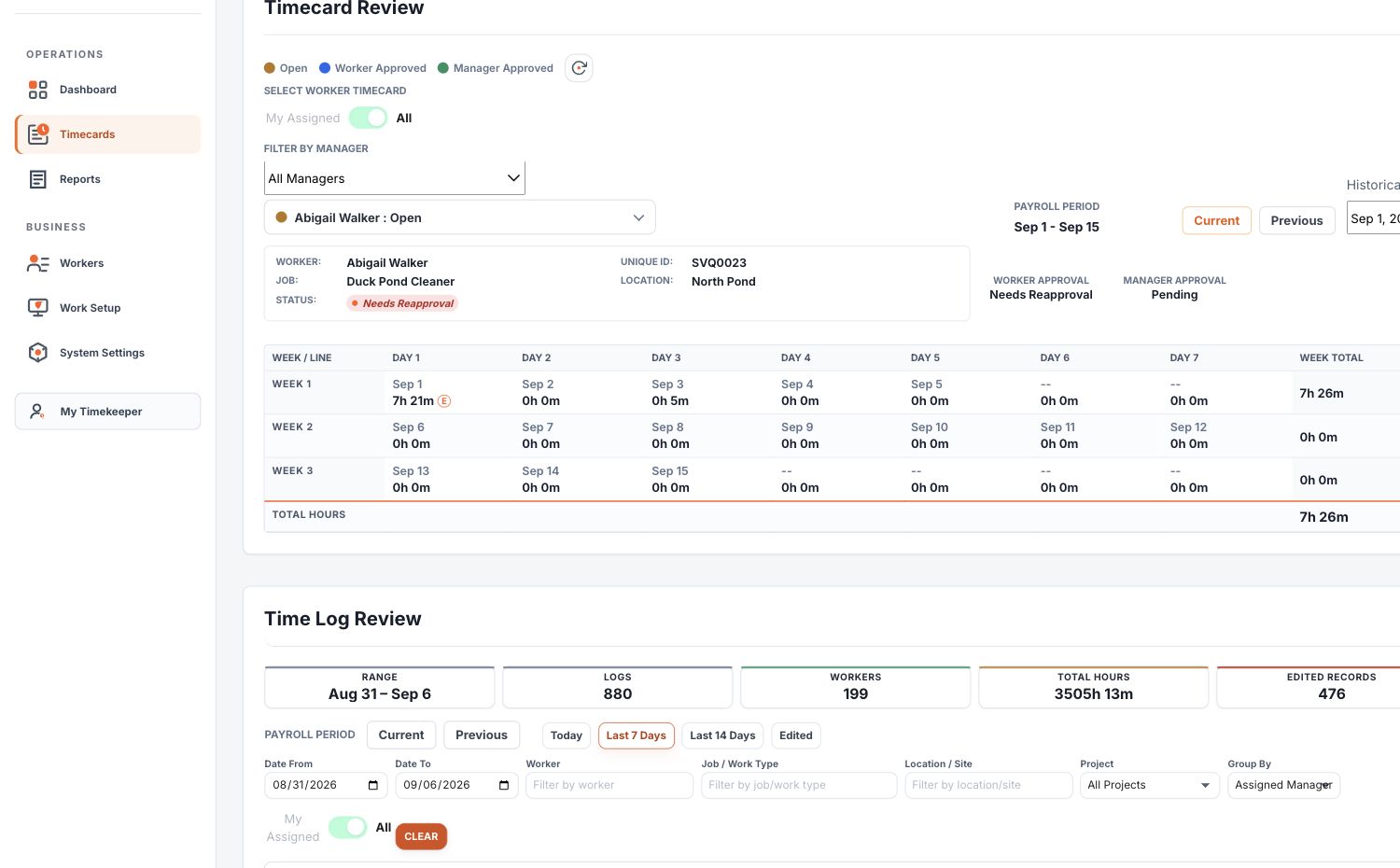
Approval actions are recorded in the audit history. The audit trail can show worker approval, manager approval, bypass approval, approval reset, and the reason a reset occurred when applicable.
Chapter
Kiosk Links and Worker QR Codes
A kiosk is a shared clock station. It allows workers to scan a QR code instead of opening their personal worker dashboard. Kiosk clocking is included with Timekeeper. For a deeper explanation of the design, portability, Manual Presence validation, and QR model, see How GetSkipa Timekeeper Uses Kiosks. For practical device, mounting, power, and network guidance, see Building Your Own Timekeeper Kiosk.
Every kiosk has its own unique URL that can be opened on a fixed or mobile device such as a laptop, desktop computer, tablet, or phone. This allows a business to dedicate a fixed kiosk or create a mobile one wherever work is being performed.
A mounted tablet at an entrance can serve as a fixed time clock. A supervisor carrying a phone can serve as a mobile time clock for a traveling crew. A team lead at a customer site can open the kiosk URL and allow workers to scan without returning to a central office. Anyone authorized with the kiosk link can temporarily operate that kiosk, creating a "kiosk anywhere" when needed.
Each worker has a QR used for kiosk identification. The same worker credential also supports the personal Work Link. If it is lost, copied, or suspected of being shared improperly, an authorized person can use Refresh QR. The old QR and old Work Link then become invalid, a new QR and Work Link are created, and the new Work Link must be shared with the worker. Timekeeper explains this consequence before confirmation.
Timekeeper intentionally does not require PIN entry at a kiosk. The worker QR code is the kiosk credential. This decision gives businesses more ways to configure kiosk use. A fixed kiosk, a manager phone, a shared laptop, and a tablet carried by a crew lead can all serve the same basic purpose without slowing down the clock process.
Kiosk behavior follows the worker's Entry Method and current state. A Clock worker who is Clocked Out can choose a Project when more than one is eligible, then Clock In. Later scans offer the available active-session actions, including Lunch, Break, Return, and Clock Out when those actions are enabled. The Project chooser does not appear again because the active Clock entry keeps its original Project.
A Manual Timesheet worker uses kiosk actions for presence only. Check In, Lunch, Break, Return, and Check Out do not create payable hours. The Manual Timecard remains the payable record. The kiosk and Manual Presence explanation describes why Timekeeper keeps these records independent.
Kiosk Only means the initial Clock In or Manual Check In must occur at the kiosk. Once an active session exists, the personal Work Link still provides the actions available for that state. On Home, the worker QR remains available as the primary identity for a Kiosk Only worker.
Businesses can optionally create and print employee badges using the built-in Badge Creator. Badges include the worker QR code and optional employee photo, making them suitable for lanyards, ID holders, or temporary badges. Badge templates can be customized with company branding and reused across the business.
Camera availability depends on the device, browser, permissions, operating system, and available power. Timekeeper can use cameras made available to it by the browser.
Chapter
Reports and Exports
The dedicated Reports area gives owners and managers a consistent place to choose criteria, run a report, review the result, and use Copy or CSV export. Reports use the same underlying business records and calculation rules as the rest of Timekeeper, but they are separate from the operational Time Logs ledger.
Time Reports
Time Reports provide flexible analysis of recorded work time. A report can use Date From and Date To, an Analyze By grouping, an optional secondary grouping, selected measures, filters, and sorting. Copy and CSV export use the complete permitted result set.
Time Reports can use fixed dates or available relative periods such as Last 7 Days and Last 30 Days. Last Quarter, where available, means the immediately preceding completed calendar quarter rather than a rolling three months. The choices displayed by Timekeeper reflect the reporting access available to the business.
Audit Reports
Audit Reports help the business understand what changed, when it changed, and who or what performed the change. Criteria include date or relative range, Scope, Event Family, and available filters for the actor or affected business record. Audit uses incremental browsing so a large history remains workable.
Configuration Reports
Configuration Reports describe the current business configuration, including workers, Jobs / Work Types, Locations / Sites, schedules, active status, and other current setup information. Configuration reporting is current-state reporting and does not use the 30-day or 90-day historical distinction.
Payroll Reports
Payroll Reports follow the business's configured payroll periods rather than the Time and Audit reporting window. They support payroll review through regular and overtime hours, approval state, worker metadata, and payroll transfer information. Timekeeper organizes payroll-ready records; it does not process payroll, taxes, deductions, or direct deposits.
Why large reports display 200 rows
Timekeeper displays report results in groups of up to 200 so large reports remain workable in the browser. Additional rows can be loaded without changing the criteria. Copy and CSV retrieve the complete permitted result for the active criteria, including large Audit reports, without requiring the user to load every page on screen first. The 200-row size is a browsing choice, not a statement that later records were discarded.
Saved report templates
Paid plans can save report configurations as reusable templates. A saved template remembers the report family, criteria, filters, columns, and ordering. Fixed-date templates retain their chosen dates. Relative templates retain the relative rule, so Last 30 Days remains relative when the template is used later.
Worker Hours and the Worker Edit Log remain personal downloads available from the Worker Dashboard regardless of business plan. Timekeeper may provide different review and export formats for different workflows. The business remains responsible for confirming that an outside payroll or spreadsheet system accepts exported values and for retaining downloaded records required for its own obligations.
Chapter
Security, Data, and Access
Timekeeper is a browser-based service. The browser does not connect directly to business storage. Requests pass through the application so Timekeeper can check the business, role, PIN requirements, subscription access, and requested action before information is read or changed.
Timekeeper requires an active internet connection to record activity, save changes, approve timecards, and generate reports. If a device loses connectivity, the requested action cannot be completed until communication with the service is restored. Timekeeper is designed to clearly notify the user when an operation cannot be completed because the device is offline rather than silently accepting or guessing at the requested action.
Each business is logically separated by business identifiers and access context. A business should not be able to access another business's records. Worker dashboards are tied to their worker identity. Kiosk scans use worker QR credentials. Owner dashboard access is protected by the owner link and mandatory PIN authorization.
Authentication is shared between Timekeeper and the business. GetSkipa enforces owner PIN use because the owner dashboard controls the business. The business controls how workers and managers use PINs. GetSkipa strongly recommends PIN use for all workers and managers.
The worker QR and personal Work Link use the same worker credential. Refreshing QR replaces both, so the business must share the new Work Link afterward. Kiosk links and worker access should be treated as operational access. They should be shared only with the people who need them.
Timekeeper provides up to fourteen months of supported historical access. Older records may no longer be available through Timekeeper, so customers are responsible for exporting and retaining records needed for labor, payroll, accounting, or business requirements beyond that window. The history window describes access through Timekeeper rather than a guaranteed physical deletion date.
Exported files leave Timekeeper's hosted environment. Once a business downloads a workbook, CSV, edit log, or configuration report, the business is responsible for storing, protecting, and retaining that file.
Chapter
Plans, Trial, and Cancellation
Timekeeper Free supports up to 10 active workers. Timekeeper Standard supports up to 50 active workers for $7 per month or $49 per year. Timekeeper Plus supports up to 200 active workers for $149 per year and is annual only.
Timekeeper pricing scales by active-worker capacity. Kiosk clocking is included across plans. Timekeeper displays the current plan and applicable worker limit for the business. Use the billing information presented by GetSkipa when starting, changing, or managing a subscription.
Chapter
Best Practices
Good setup makes Timekeeper easier to trust later. The business should use names that will still make sense when reviewing records months from now. Worker display names should be clear. Jobs should reflect the business's real work categories. Locations should describe where work is performed in a way managers and owners can understand.
Create jobs and locations before adding workers when possible. This allows each worker to be assigned correctly during setup. It also improves reports immediately because time records will already include useful context.
Assign PINs to workers and managers. Keep the owner PIN somewhere safe. If the business uses kiosks, print worker QR codes clearly and replace any QR code that is lost, damaged, or suspected of being shared improperly.
Test kiosks before placing them in daily use. The camera should scan worker QR codes reliably under the lighting conditions where the kiosk will be used. External cameras can be useful for fixed stations if the device recognizes the camera and supplies enough power.
Review time before exporting. A good workflow is to let workers approve their own time, let managers review exceptions, correct records when necessary, then perform final approval before downloading business reports. Retain exports if the business needs records beyond Timekeeper's supported history window.
Deactivate workers instead of trying to erase history. Historical records are important for time review and business continuity. Deactivation keeps old records available while removing the worker from active operations.
Chapter
Known Limits and Recovery
Timekeeper is intentionally focused on timekeeping. It does not process payroll, calculate taxes, manage benefits, track labor law compliance, replace an HR system, or determine legal obligations for the business.
Manual edits during the repeated hour of a daylight saving time fallback event may be ambiguous because the same local clock time can occur twice. Actual Clock events remain stored as UTC-based instants. The audit history provides traceability for manual changes.
Audit filters use the details recorded with each event. A filter returns events that carry the selected worker, Job / Work Type, Location / Site, Project, kiosk, actor, or subject context.
The Owner worker is a protected business account and cannot be deactivated or have Owner access removed through normal worker maintenance. If Owner identity appears unresolved, contact GetSkipa support rather than creating a replacement worker.
Keep the Owner PIN secure. If Owner access is lost, contact GetSkipa support to ask what verified assistance is available.
Timekeeper supports owner and worker workflows across desktop, tablet, and phone. Dense reporting and configuration views may be easier to review on larger screens because they contain more information.
Chapter
Validation Summary
Timekeeper is internally tested with automated regression testing that currently includes more than 1,000 checks. The checks cover Clock and Manual work, Projects, kiosks, payroll periods, approvals, reports, Audit, access boundaries, and important error and retry behavior.
Qualification also uses simulated businesses with realistic workers and historical activity. The SolaceVerse qualification environment includes 200 workers and approximately 90 days of synthetic Clock activity for populated-roster, timecard, reporting, and history review.
This evidence describes tested and qualified behavior. It is not a promise that 200 people can perform the same action at the same instant, a capacity guarantee, an uptime commitment, or an independent certification.
Internal security work includes automated source scanning and controlled testing of public application and API behavior. Timekeeper also tests role and business access boundaries. This is internal testing, not a claim of compliance with a regulatory framework.
Chapter
Questions Businesses Ask
Does Timekeeper replace payroll software? No. Timekeeper records work time, organizes it, and exports reports that support payroll review. Payroll processing remains outside Timekeeper.
Do workers need an app? No. Workers use browser-based access through their worker dashboard or scan a worker QR code at a kiosk.
Can workers see other workers? No. The worker dashboard is personal to the worker record.
Can workers download their own records? Yes. Workers can download personal hours and personal edit logs regardless of the business plan.
What reports are available? Timekeeper provides Time, Audit, Configuration, and Payroll report families. The periods and choices shown in the application reflect the reporting access available to the business.
Why does a report sometimes show only 200 rows? For larger reports, Timekeeper displays the first 200 rows as an on-screen preview to keep the browser responsive, especially on tablets and phones. The complete permitted report is still available through Copy and CSV export. The 200-row preview is not a plan or data-access limit.
Are Shared Kiosks included? Yes. Kiosk clocking is included with Timekeeper. Workers can also use personal Work Links where Kiosk Only does not restrict initial entry.
What happens if a worker scans at a kiosk while already in a session? Timekeeper offers the actions allowed by the current Clock or Manual Presence state. Lunch, Break, Return, and Clock Out or Check Out appear only when available for that state and enabled for the kiosk.
Why does a Manual Timesheet worker show Checked In but no payable hours? Manual Presence and payable Manual time are separate. The worker must save payable hours on the Manual Timecard. Presence never creates those hours.
Why did Worker Approval change to Needs Reapproval? Payable time changed after the worker approved it. Timekeeper asks the worker to review the changed timecard instead of treating the old approval as approval of a new total.
Why did the Work Link stop working after Refresh QR? Refresh QR replaces the shared QR and Work Link credential. The new Work Link must be shared with the worker, and the old QR and link no longer work.
How does a Clock worker change Projects? Clock Out of the current Project, then Clock In again and choose the next Project. One Clock entry keeps one Project through Lunch, Break, and Return.
Why do some short entries show less than one minute? The entry lasted less than sixty seconds. Timekeeper preserves the entry but records zero counted minutes until a full minute has elapsed.
How far back can I access Timekeeper records? Timekeeper provides access to up to fourteen months of historical timekeeping information. Report date choices follow the access shown for the business, while Payroll Reports use configured payroll periods within the supported history window. Retain exports and payroll records needed for longer-term recordkeeping requirements.
What should I do if the Owner PIN is unavailable? Contact GetSkipa support to ask what verified assistance is available. Managers within the business can reset worker PINs.
Chapter
What's New in Revision 1
This revision updates the Book to reflect reporting and interface improvements introduced after the First Edition. The underlying purpose of Timekeeper remains unchanged: record work time clearly, preserve the history, and make review and payroll preparation easier.
Dedicated reporting
The owner and manager workspace now includes a dedicated Reports area for Time, Audit, Configuration, and Payroll Reports. Depending on the report, businesses can choose criteria, groupings, measures, columns, filters, and sorting before using Copy or CSV export.
Reporting access
Report access expanded to include complete permitted results with a bounded browser preview. The exact date choices available to a business remain visible in the current Reports workspace.
Worker Status
Worker Status introduced clearer planned and actual schedule context and improved daily operational review. Revision 2 documents the current Working, presence, Out, Expected, Missing, Excused, and Not Scheduled language.
Mobile Owner experience
Mobile Owner navigation was refined with direct My Work access, clearer access to Jobs / Locations / Kiosks, and improved access to Reports.
Performance and reliability
Several query and interface paths were refined to reduce unnecessary work and improve response consistency as business activity grows.
General corrections
This revision also reflects schedule display corrections, report range validation, Time Log filtering refinements, Worker Status display fixes, and mobile navigation corrections.
Chapter
What's New in Revision 2
Revision 2 reflects the largest expansion of Timekeeper since the original Book was published. It does not change the purpose of the product. It gives businesses more ways to record and understand work while keeping the same commitment to clear history and review.
Guided Setup and business defaults
New businesses can now use Guided Setup to establish Business Hours, payroll settings, Break Settings, Default Entry Method, and recommendations for Projects and Shared Kiosks. The Quick Setup Guide owns the step-by-step procedure; this Book explains what those decisions mean.
Clock, Manual, and mixed workforces
Timekeeper now supports Manual Timecards and mixed Clock and Manual workforces. Manual Presence was added as a separate operational signal so a business can see whether a Manual Timesheet worker is present without turning presence into payable time.
Projects
Projects connect recorded hours to customers, contracts, or defined work. The Default Project provides a fallback. Clock workers choose a Project when a session begins, and Manual Timesheet workers allocate daily hours among eligible Projects.
Current operations and review
The Operations Dashboard now uses current states such as Working, Checked In, Checked Out, Out, Expected, Missing, Excused, and Not Scheduled. Timecard Review now brings Clock and Manual records together with Worker Approval, Manager Approval, Needs Reapproval, Manager filtering, and historical payroll periods.
Worker access and kiosks
My Timekeeper now includes current-session detail and an eligible worker QR tile. Kiosk Only restricts initial entry but does not hide the available actions for a session already in progress. QR refresh now clearly explains that the shared Work Link is replaced at the same time.
Reports and qualification
Reports now support saved templates, fixed and relative date rules, bounded on-screen loading, and complete Copy and CSV retrieval. This edition also records the current automated regression and simulated-business qualification evidence without presenting it as a commercial capacity guarantee.
Chapter
Final Thoughts
Timekeeper was built around the belief that a business should be able to understand the software it depends on.
The application records work time, preserves the history, applies the configured business rules, and presents the results consistently. That is the core of the product.
Timekeeper was designed around the idea that trust comes from transparency. Workers can review their own time records, approvals, and changes. Managers can review the same business records, including edits and corrections made throughout the payroll period. When time is corrected, the application preserves an audit trail instead of silently replacing the original information. Everyone responsible for reviewing time can understand what changed, when it changed, and who made the change.
Future versions may change the interface, add reports, improve mobile views, or refine workflows. Those changes should remain faithful to the same principles described throughout this book. Records should be accurate. Decisions should be understandable. Data should remain available to the business through clear exports. Software should explain itself instead of hiding behind complexity.
Thank you for trusting Timekeeper with your business.
GetSkipa LLC